





Managing a cluttered inbox while keeping up with every conversation is one of the most common productivity struggles today. That’s exactly where Gmail email automation steps in. Whether you’re a solo professional, a small business owner, or part of a large team running Google Workspace, learning how to set up automatic emails in Gmail can save you hours every single week.
This guide covers everything from setting up a Gmail auto reply and creating email filters to scheduling messages and using Gmail automation tools. Let’s get into it.
What Are Automatic Emails in Gmail?
Automatic emails in Gmail are messages that get sent, forwarded, or replied to without you manually doing it each time. Gmail has several built-in features that handle this, including the vacation responder, email filters, canned responses (now called templates), scheduled send, and auto-forwarding. Together, these tools form a solid foundation for Gmail workflow automation.
Types of Gmail Automation You Can Use
Before diving into setup steps, here’s a quick overview of the main types of Gmail automation available:
- Gmail Auto Reply: Sends a pre-written response automatically (e.g., vacation responder)
- Gmail Filters & Rules: Sorts, labels, deletes, or forwards emails based on conditions
- Gmail Templates / Canned Responses: Pre-saved replies you can trigger manually or automatically
- Gmail Scheduled Send: Lets you compose now and deliver later
- Auto Forwarding: Redirects incoming emails to another address
- Gmail Add-ons & Extensions: Third-party tools for advanced automation triggers
How to Set Up Auto Reply (Gmail Vacation Responder)
The Gmail vacation responder is the simplest way to send an automatic email response when you’re away. It works on both desktop and mobile, and takes less than two minutes to configure.
Steps to Enable Gmail Vacation Responder:
- Open Gmail and click the gear icon (top-right), then select See all settings.
- Stay on the General tab and scroll down to Vacation responder.
- Toggle it to Vacation responder on.
- Set your First day, Last day (optional), Subject, and Message.
- Choose whether to send replies only to your contacts.
- Click Save Changes.
This is the most-used Gmail auto-response setup for professionals going on leave. It sends once every four days to the same sender, so you won’t flood anyone’s inbox.
How to Create Email Filters in Gmail
Gmail filters (also called Gmail email rules) let you automatically handle incoming emails based on sender, subject, keywords, or other criteria. This is one of the most powerful built-in Gmail automation tools available for free.
How to Set Up a Gmail Filter:
- In Gmail, click the search bar at the top and then click the filter icon on the right side.
- Fill in your criteria, From, To, Subject, Has the words, etc.
- Click Create filter.
- Choose an action: Apply a label, Skip the inbox, Mark as read, Forward it, Delete it, etc.
- Click Create filter again to save.
Gmail email filters are ideal for businesses that receive large volumes of newsletters, client emails, or support requests. Pair them with labels to build a near-automated email management system.
How to Set Up Auto Forwarding in Gmail
Gmail auto-forward lets you redirect all incoming emails, or filtered ones, to another address. This is useful when managing multiple accounts or routing team emails.
- Go to Settings > See all settings > Forwarding and POP/IMAP.
- Click Add a forwarding address and enter the destination email.
- Google will send a verification email; confirm it.
- Back in settings, choose Forward a copy of incoming mail to [address].
- Click Save Changes.
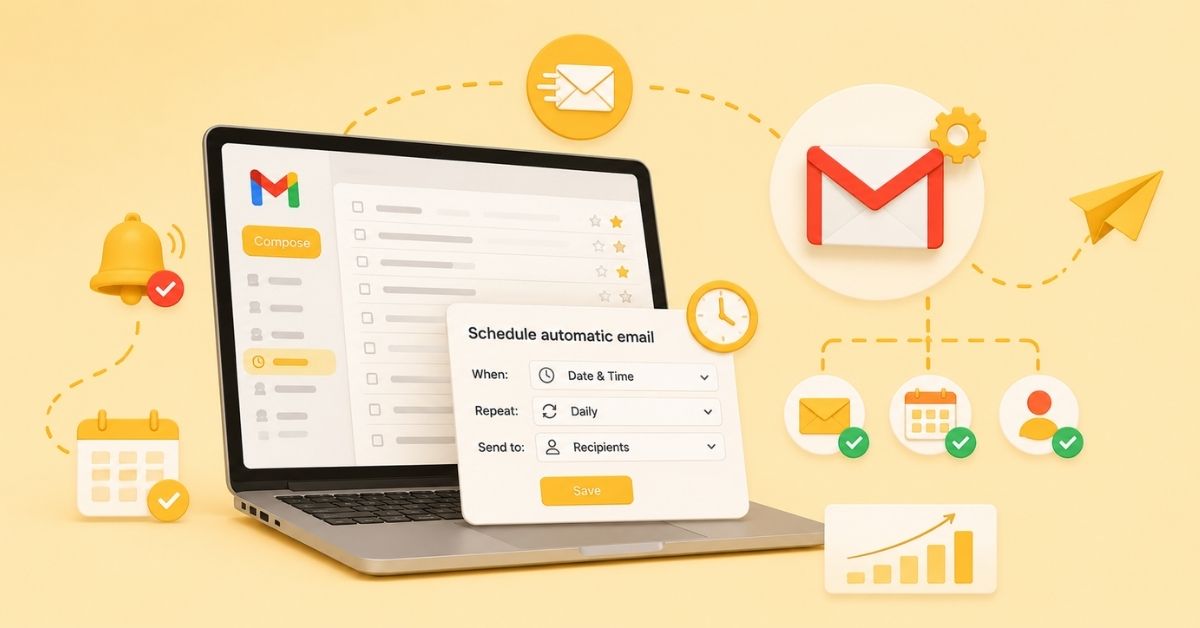
How to Schedule Emails in Gmail
Gmail’s scheduled send feature lets you compose an email now and send it at a specific date and time. This is perfect for reaching people in different time zones or queuing messages outside work hours.
To Schedule an Email in Gmail:
- Compose your email as usual.
- Click the dropdown arrow next to the Send button.
- Select Schedule send.
- Choose a suggested time or pick a custom date and time.
- Click Schedule, send to confirm.
Scheduled emails appear in a dedicated Scheduled folder in your Gmail sidebar. You can edit or cancel them anytime before the send time.
How to Use Gmail Templates (Canned Responses)
Gmail templates, formerly called canned responses, let you save and reuse common messages. Combined with filters, they can power truly automatic email replies.
Enable and Create a Gmail Template:
- Go to Settings > See all settings > Advanced.
- Enable Templates and click Save Changes.
- Compose a new email with your desired reply text.
- Click the three-dot menu in the compose window > Templates > Save draft as template.
- Name your template and save.
To auto-send a template: Create a Gmail filter, check Send template under the filter actions, and select your saved template. Now Gmail will auto-send that reply whenever a matching email arrives.
Gmail Add-ons and Tools for Advanced Email Automation
For more advanced Gmail automation triggers and workflows, native Gmail settings sometimes aren’t enough. These Gmail extensions and add-ons fill the gap:
- Zapier: Connect Gmail to 5,000+ apps; trigger auto emails based on form submissions, CRM updates, or new spreadsheet rows.
- Google Apps Script: Free, code-based automation. Set auto email triggers in Gmail using Google’s scripting environment.
- Boomerang for Gmail: Schedule emails, set reminders, and automate follow-ups.
- Right Inbox: Adds recurring emails, email sequences, and follow-up reminders.
- Streak CRM: Turns Gmail into a full CRM with pipeline-triggered email automation.
These are among the best email automation tools that work natively within Gmail, making them ideal as Gmail productivity tools in 2026.
Gmail Automation for Business & Google Workspace
If your team is on Google Workspace, Gmail business email automation gets more powerful. Admins can set domain-wide forwarding rules, and individual users get access to advanced filters and delegation features. Google Workspace automation also integrates tightly with Google Calendar, Sheets, and Drive enabling end-to-end email workflows without any third-party tools.
For example, you can use Google Apps Script to auto-send a confirmation email every time a Google Form is submitted: a common use case for event registrations, support tickets, or lead capture forms. This is how many businesses handle auto email triggers in Gmail without paying for expensive marketing software.
Gmail Auto Reply Not Working? Here’s How to Fix It
One of the most common complaints is that Gmail auto reply is not working as expected. Here are the most frequent causes and their fixes:
Issue: Vacation responder is off: Go to Settings > General and toggle it on again.
Issue: Reply is only going to contacts: Uncheck the ‘Only send a response to people in my Contacts’ option.
Issue: Template not sending: Verify the filter is set up correctly and the template action is enabled.
Issue: Gmail filter conflict: Check for overlapping filters that may override your auto-reply filter.
Issue: Mobile settings override: On iPhone or Android, ensure Gmail settings are synced and not overriding desktop settings.
Best Practices for Gmail Email Automation
- Always test your auto reply email before activating it, send a test email from another account to confirm it works.
- Keep your professional auto reply short, clear, and include an alternative contact if urgent.
- Avoid over-filtering; too many overlapping Gmail email rules can cause conflicts.
- Use Gmail email scheduling for non-urgent outreach to maximize open rates.
- Audit your Gmail filters and templates every quarter to remove outdated rules.
- For Gmail automation on mobile, double-check settings under the Gmail app (iOS and Android handle some settings independently).
Conclusion
Gmail’s built-in automation features are genuinely powerful and most people use only a fraction of them. From the simple Gmail vacation responder to filter-based auto-replies using templates, and from scheduled emails to Google Workspace automation, there’s a setup for every workflow and skill level.
Start with the basics, set up your auto reply in Gmail, create a few smart filters, and enable templates. Once you’re comfortable, layer in Gmail add-ons or Google Apps Script for trigger-based automation. The result is a leaner inbox and more time back in your day.
Whether you’re managing solo email or scaling Gmail business email automation across a team, the tools covered here will serve you well through 2026 and beyond.
FAQs on Gmail Automatic Emails
Can I set up a Gmail autoresponder for free?
Yes. The vacation responder, filters, templates, and scheduled send are all free features in Gmail, no Workspace subscription required.
Does Gmail auto reply work on mobile?
Yes, but you must configure it via the Gmail app’s settings. Gmail auto reply on Android and iPhone can be set under Settings > [Your Account] > Vacation responder.
How is Gmail different from Outlook for auto replies?
Both platforms support auto replies, but Gmail’s filter-based template automation is more flexible for personal use. Outlook’s rules engine is more powerful for enterprise environments. For most individuals, Gmail’s tools are more than sufficient.